Developer
Bugs, feature requests, open tasks, research links, and a clean packet when you need help on the exact slice of work you are in.
FAQ
Root is meant to be understandable without a long onboarding sequence. This page covers what it is, what it is not, and how the capture, shaping, and handoff workflow works.
New to Root? Start with the short Getting Started loop.
Browse by category or search for the exact thing you are trying to figure out.
No direct match yet. Try simpler terms like Inbox, Snippets, Open Tasks, Meeting Transcripts, Root Connect, or Context Handoff.
The basics
What Root is, what it is not, and when it makes more sense than a pinned doc or a general-purpose notes archive.
Root is a private-by-default local workspace for working text, available publicly in Chrome and on iPhone. Chrome gives you the complete desk workspace. Root for iPhone is a smaller, capture-first version of the same core workspace, with Voice Note and Meeting Transcripts added for mobile capture.
Download Root for iPhone from the App Store, or install Root for Chrome from the Chrome Web Store. Root for Safari on Mac is coming soon and is not publicly available yet. Root for Android is a selected-tester Closed Alpha on Google Play; you may request testing access through Contact, and access is confirmed individually. Core local use is free and does not require a Root account.
People can absolutely use it like a simple notepad, but that is not the product center. Root is designed more like a lightweight context workspace than a general-purpose notes archive. If you want the longer version of that distinction, read Working Text Is Not the Same as Notes.
That is a fair way to think about one part of it. If you already use Notepad, TextEdit, VS Code, or folders of .txt and .md files, Root gives that plain-text habit a working surface. Drag multiple files in, see them together in one sidebar, edit them, turn lines into Open Tasks, save reusable bits as Snippets, and hand off the exact context when it is ready.
Yes. A new item can absolutely be used like a simple note. Think of an item more like a digital index card than a giant document: it is bigger than a line, smaller than a polished doc, and the right size for one thought, one project slice, or one reusable block of text.
Because Root is built for handoff and active text, not just storage. It gives you Draft, Inbox, Open Tasks, Snippets, and Context Handoff in one small local surface. A pinned doc or a notes app is still better when you want a polished long-form document, long-term archive, or broad collaboration. Root is for the text before that point.
No. The current beta is local-first and does not require an account to use the workspace.
No. Root is still useful if you never copy anything into an assistant. The same workspace is good for rough thinking, pasted research, reusable text, and project organization even if you keep everything local.
AI project memory is the working context you keep outside any one assistant: decisions, links, constraints, open questions, task lines, snippets, reusable prompts, and the rough project notes you may want to bring into ChatGPT, Gemini, Claude, a browser AI sidebar, a doc, or another person.
In Root, that might be a project brief with current goals, a bug note with steps and source links, meeting prep with checklist lines, an about-me.md or project-context note you reuse, or saved prompt snippets that help frame a Context Handoff.
Root does not manage agents for you. It gives the human a more focused Markdown-friendly place to keep the material before deciding what to share.
Root is especially good for work that keeps turning into small pieces of working text: bug notes, script fragments, meeting prep, follow-ups, research links, assignment checklists, and reusable instructions.
Here is the kind of active text Root tends to hold well before it turns into a finished doc or a bigger system.
Bugs, feature requests, open tasks, research links, and a clean packet when you need help on the exact slice of work you are in.
Hooks, script fragments, sponsor notes, and reusable prompt text without turning the whole thing into a giant content system.
Daily handoff, follow-ups, travel notes, and meeting prep that need to stay close at hand instead of buried in a bigger archive.
Lecture dump notes, assignment checklists, research links, and all the rough text that shows up before anything feels organized.
The workflow
The small parts that make Root feel like a workspace instead of just another place to dump text.
Draft is an automatically saved writing surface in Chrome's side panel. Keep it open beside the web, mark quotes, findings, and questions, attach the current page, or right-click selected text to keep an excerpt with its source. Save the draft as a new note without clearing it, or append it to Inbox and begin again with a clear draft. For a more focused browser workflow, read A Better Browser Capture Workflow.
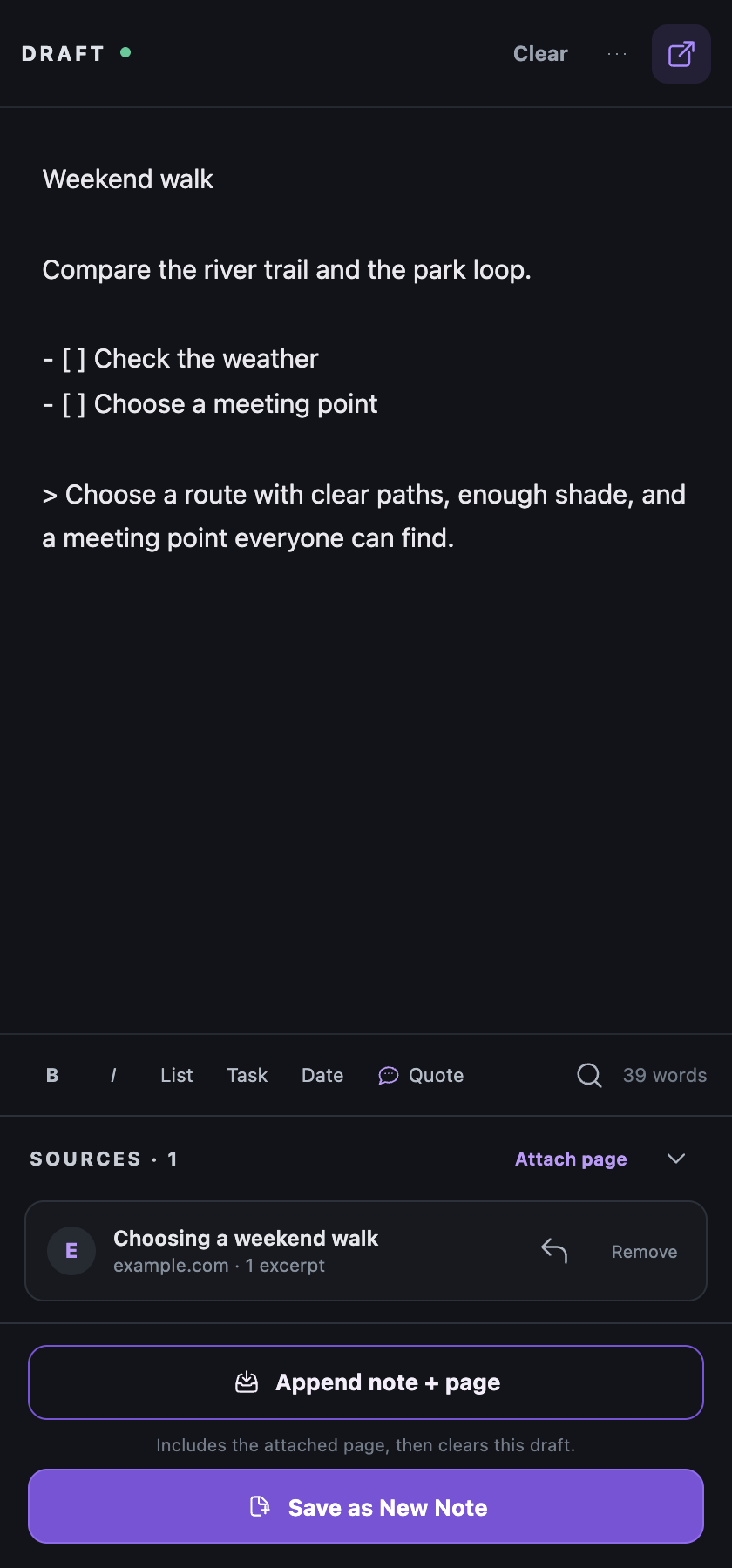
Chrome 0.1.32 brings clearer formatting and capture actions in Draft. Use Quote for Markdown quote formatting, and Attach page or the selected-text action when you want to keep a source.
Formatting does not attach a source automatically. Findings and questions can remain ordinary editable text in your draft.
Choose the mobile capture tool that matches where the words are coming from:
A simple rule: use Voice Note when you are speaking a quick thought, Meeting when the conversation itself may matter later, and Smart Scan when the information is already visible as a QR code or on a physical surface. See Meeting Transcripts for the longer meeting guide.
Smart Scan reads useful QR codes and lets you take immediate action:
Smart Scan supports common, user-readable QR content, including:
Root is designed to capture information into your workspace, not execute arbitrary commands or manage sensitive credentials. Root intentionally does not activate or save:
This reassuring boundary keeps scanning fast and safe without exposing or storing sensitive data. For credentials, payments, or app commands, use your device's Camera, wallet, authenticator, or the issuing app directly.
When you scan a QR code or capture text from a photo, you can choose how to keep it:
qr-code, and photographed text captures are tagged photo-transcribe.Yes. Root 1.0.1 or later adds native actions to Apple Shortcuts automatically. You can send text to Inbox, open or append to notes, copy note content, create notes, and find notes by content or tag.
The native actions work without installing a separate Shortcut. If you want a ready-made starting point, Root also offers three optional starters: Send to Root, Add Root Task, and Save Clipboard To Root. Review and download the starters.
These actions work locally with the Root library on your iPhone. They do not require a Root account, Root Connect, Google Drive, or a network connection for local use.
Yes. You can drag one or more .md or .txt files straight onto the workspace to import them. This is especially useful when you have several scratch files open and want to view, edit, task, and hand off the material together instead of bouncing between separate text editor windows. The Import menu also still works when you would rather choose files or a full export folder manually.
No. The current public Chrome package leaves your usual new-tab page alone. Selecting the Root extension icon opens Draft in Chrome's side panel.
Choose Open workspace from Draft, then pin or bookmark that tab if it helps. Root focuses and reuses the existing workspace tab when one is already open instead of creating duplicates.
Inbox is the default landing spot for rough capture. It is where quick text goes first when you do not know where it belongs yet. If you want the philosophy behind that design, read Why Inbox Matters More Than Perfect Organization.
Open Tasks is a live rollup of unfinished checklist items from across active items. It is not a separate task database. It reflects markdown-compatible task lines already living in your workspace. If you want the longer version of why that matters, read Why Open Tasks Is Not a Task Manager.
Use tags as lightweight labels, not rigid folders. Good tags usually describe a role, project, state, person, or use: #school, #website, #waiting, #client, or #handoff. If you want examples, read How to use tags in Root.
Clean View is a more readable rendering of the same note. It keeps the underlying plain text and markdown-compatible structure intact, but shows bullets, tasks, strike, links, and date stamps in a cleaner reading mode.
Root keeps the main editor intentionally minimal. The core tools are Clean View for reading, Tidy paste for cleaning rough pasted text, bullets, tasks, date stamps, and snippets. That is enough structure to shape messy working text without turning Root into a full document editor.
Tidy paste is for copied text that brings awkward spacing, extra blank lines, or broken line breaks with it. It does not summarize, rewrite, or send anything to AI. It only tidies the text already in the item.
Links only changes the output so you share the matching URLs without all the surrounding notes. It is useful when the references are the real payload and the extra commentary would only add noise.
Snippets are reusable text blocks that live in their own view instead of cluttering the main item list. Save selected text as a snippet, then insert it later when you need repeated instructions, bios, tone guidance, project boilerplate, or prompt fragments. In Context Handoff, saved prompt snippets can also be added at the top of the packet before you copy or share it. If you want a public starter set, see Starter snippets for messy work.
Yes. Snippets are a lightweight way to keep reusable prompts, repeated instructions, tone guides, and prompt fragments without turning Root into a heavy prompt-management system. If you want a simple local prompt library, Snippets are a good fit. One of the most useful current patterns is to save prompts there, then use the Add prompt control inside Context Handoff to frame a packet before it leaves Root. For a public starting point, see Starter snippets for messy work. For a fuller walkthrough, read How to Build a Personal Prompt Library Without Making a Mess.
Context Handoff lets you preview and copy a clean packet from the current item, selected items, a project tag, pinned context, or open tasks. You can also add a saved prompt from Snippets at the top, which makes it easier to hand off not just the context, but the exact framing for what you want next. Nothing is sent automatically. You inspect it first, then copy it where you want. If you want the broader thinking behind smaller packets, read Copy Less Context, Get Better AI Help.
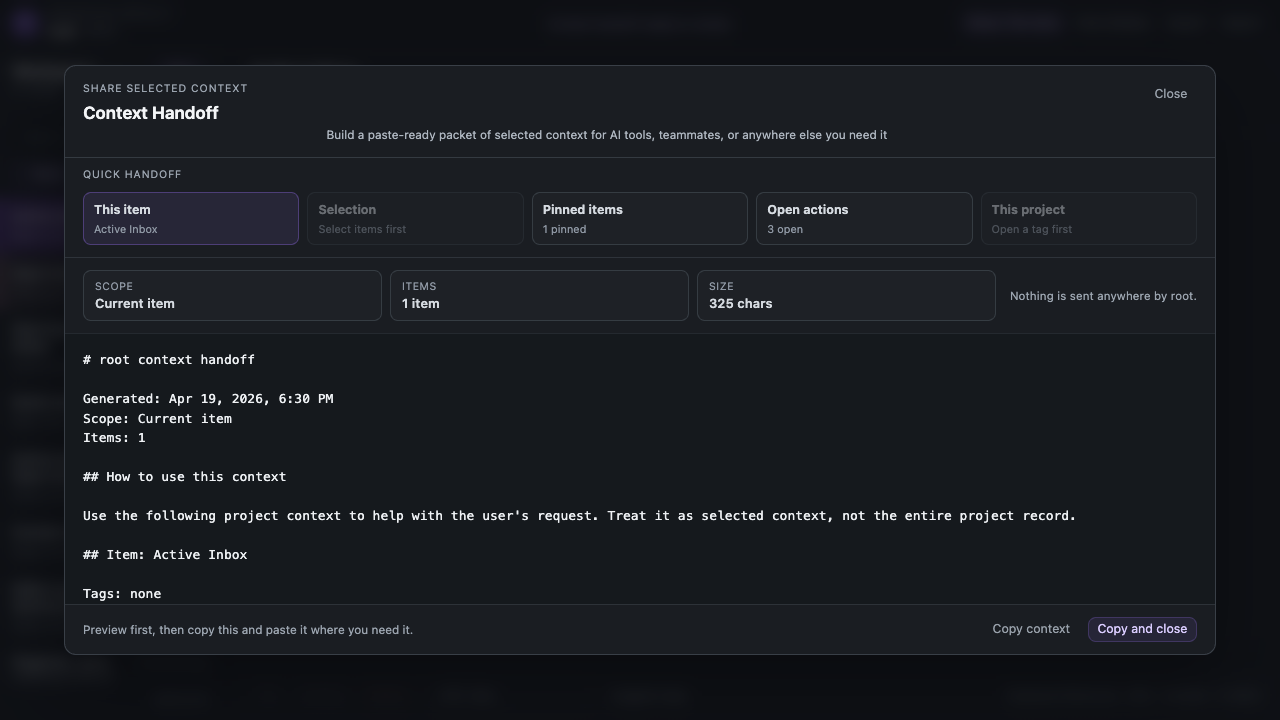
Yes. Save your instruction, question, response format, or other custom prompt as a Snippet first. Open that Snippet and select Prompt to add it to the prompt list. Then open Context Handoff, choose Add prompt, and select it. Root places the prompt above the selected context so the packet includes both the material and what you want done with it.
Once at least one Snippet is marked as a prompt, Add prompt shows only the marked Snippets. If none are marked, Root shows all saved Snippets as a fallback.
The current handoff panel chooses prompts from saved Snippets rather than using a separate free-typing field. You can preview the complete packet, change or remove the prompt, and copy only when it looks right.
Context Handoff is where you choose the scope, preview the packet, and decide exactly what gets copied or shared. It is intentionally a separate step so Root can stay explicit about what leaves the workspace.
Meeting Transcripts
A mobile capture mode for conversations you want to search, edit, and use later without losing the original words.
Meeting Transcripts turn a spoken meeting, call, lecture, walkthrough, or long thinking session into a dedicated Root note. Start Meeting on iPhone, save when you are done, and Root keeps the original transcript with duration and a short local description.
The point is not to pretend the meeting is already organized. The point is to keep the conversation so you can search it, edit it, pull out the useful parts, or hand it off later.
Root is private by default and does not send your meeting notes to a Root-hosted workspace. Meeting capture uses Apple Speech, the short meeting description is generated locally on the device, and the original transcript stays in your editable Root note.
Root does not promise that every speech-recognition step is fully offline. Apple Speech availability and processing can vary by device, language, and system conditions.
Use it when the exact words may matter later. Start Meeting before a call, discussion, video, lecture, or review session. Put the phone on the table, let it listen, then save the transcript as a meeting note.
After the meeting, rename the note if needed, search for the important phrase, clean up the parts that matter, turn follow-ups into task lines, or copy the original transcript into another tool when you want deeper analysis.
Root keeps this intentionally modest. The transcript is captured with Apple Speech, and the short description is generated locally on device. Root does not create a full AI meeting report or guess action items for you.
That is deliberate. The original transcript comes first, so you can decide what matters instead of trusting an automatic summary to decide for you.
Meeting Transcripts live as normal editable Root notes with their own Meetings view. They stay out of the ordinary Recent list so they do not crowd everyday notes, but they remain searchable from main search.
If you use Root Connect, meeting notes can sync through your connected Root Workspace so you can open, edit, and search them in Chrome too. Root does not use a Root-hosted server for this.
Root Connect
The connected workspace layer for using Root on Chrome and iPhone with the same working text.
Root Connect lets you sync devices with your Google Drive so Root on Chrome and iPhone can use the same workspace. It is for people who want quick capture on mobile and deeper working-text editing on Chrome without treating Root as a hosted account.
The core idea is simple: Root stays local-first, and Root Connect gives those local workspaces a shared bridge when you choose to connect them.
Root Connect keeps the useful parts of your Root Workspace available across connected devices: items, Inbox, task lines, tags, snippets, Archive, and Trash state. Open Tasks is still a live rollup from task lines, so when task lines move between devices, Open Tasks updates too.
It is built for working continuity: capture a thought on iPhone, use Sync now, then keep shaping it in Chrome; or clean up a note in Chrome, sync, then have it with you on iPhone.
No. Root Connect uses a Root Workspace file in your Google Drive. Root does not run a hosted workspace account, and Root is not storing your notes on a Root server.
Google Drive is the bridge. Your local Root apps read and write the workspace file after you connect and grant access.
No. Root on Chrome can be used locally without Root Connect, without Google Drive, and without a Root account. Root Connect is for the connected Chrome-and-mobile workflow.
Sync now is the normal Root Connect action. It sends local changes that are ready, checks Google Drive for newer workspace changes, and applies what can be merged safely.
Root keeps this action visible because the trust moment matters. You should be able to see when the workspace is syncing and when it has finished.
If Root cannot merge changes safely, it keeps a separate Version Conflict item instead of silently overwriting work. The point is not to make conflicts feel exciting; it is to make them recoverable and understandable.
The safer habit is still simple: use Sync now before switching devices, and avoid editing the same item in two places at the same time.
No. Root Connect is for workspace continuity across Root surfaces. It is not a full backup system, file history product, or account recovery service. Keep normal device and Google account recovery habits in place.
Root support covers purchase or restore problems, connection setup, Root-generated diagnostics, and synchronization problems between supported Root surfaces. Root Connect is provided as-is: it does not guarantee uninterrupted Google Drive availability, conflict-free synchronization, a response-time service level, or data recovery.
Keep normal backups and read the current Terms and Support scope.
Root Connect needs permission to work with the Root files it creates or opens in your Google Drive. The goal is narrow access for the workspace bridge, not broad account access.
The public Chrome package remains usable as a local workspace. It asks for Google authorization and optional Drive access only when you choose Root Connect.
Start wherever you spend the most time. Chrome desktop was built first and serves as the primary workspace for researching, writing, and organizing beside the browser. iPhone is the capture companion for voice notes, photos, and quick links on the go (though each app works completely on its own for free). When you want them connected, unlock Root Connect once on iPhone, connect your Google Drive in both apps, and use Sync now.
Root for Codex beta
A separate beta workflow for preparing local Codex Drafts before optional import into Root.
Root for Codex is a work-in-progress beta that we are still testing. It uses three focused skills: Find Codex Drafts, Answer from Codex Drafts, and Manage Codex Drafts. Answer from Codex Drafts can produce task lists, briefs, resume summaries, project memory, and ship checks without turning each output into another skill.
Codex Drafts are ordinary Markdown files outside your live Root Workspace. If you want one in Root, open Root Chrome and choose Import Codex Drafts manually; Root does not watch or import the folder automatically. Existing Codex notes folders remain supported and are not moved or renamed.
Codex Drafts are not Chrome's Draft. Draft is one writing surface inside the Root Chrome experience; Codex Drafts are separate local files prepared with Codex.
The plugin is free for anyone and separate from Root Connect. It does not need a Root account, Root server, Google Drive, iPhone, Root Workspace, or Root Connect to be useful.
Read the beta page at Root for Codex.
No. Root for Codex is a free permanent beta provided as-is. It has no guaranteed compatibility, continued availability, support response, service level, or data recovery. Documentation and reproducible issue reports are best-effort, and you are responsible for backing up the local Markdown files you want to keep.
Root support primarily covers Root Workspace and Root Connect. See the Support scope, Terms, and Privacy.
Still deciding?
If your question did not fit neatly into the FAQ, try Support for troubleshooting, or Privacy and Security for data and permissions.