The browser is where a lot of loose text appears first. A Chrome notes workflow should help you save it without breaking focus.
A line from a page you want to keep. A question you need to ask later. Three bullets for an email. A task you do not want to forget. A link with one sentence of reaction attached to it.
That kind of text usually arrives too quickly for a heavy workflow. If every capture needs a full note title, a category decision, and a clean destination before you can save it, the capture habit gets annoying fast.
A better browser workflow is usually simpler than people think:
- one automatically saved draft beside the web
- source capture only when the page adds meaning
- two clear destinations when the material is ready
Start with one persistent draft
The easiest way to lower capture friction is to stop asking every incoming piece of text to become a finished note immediately.
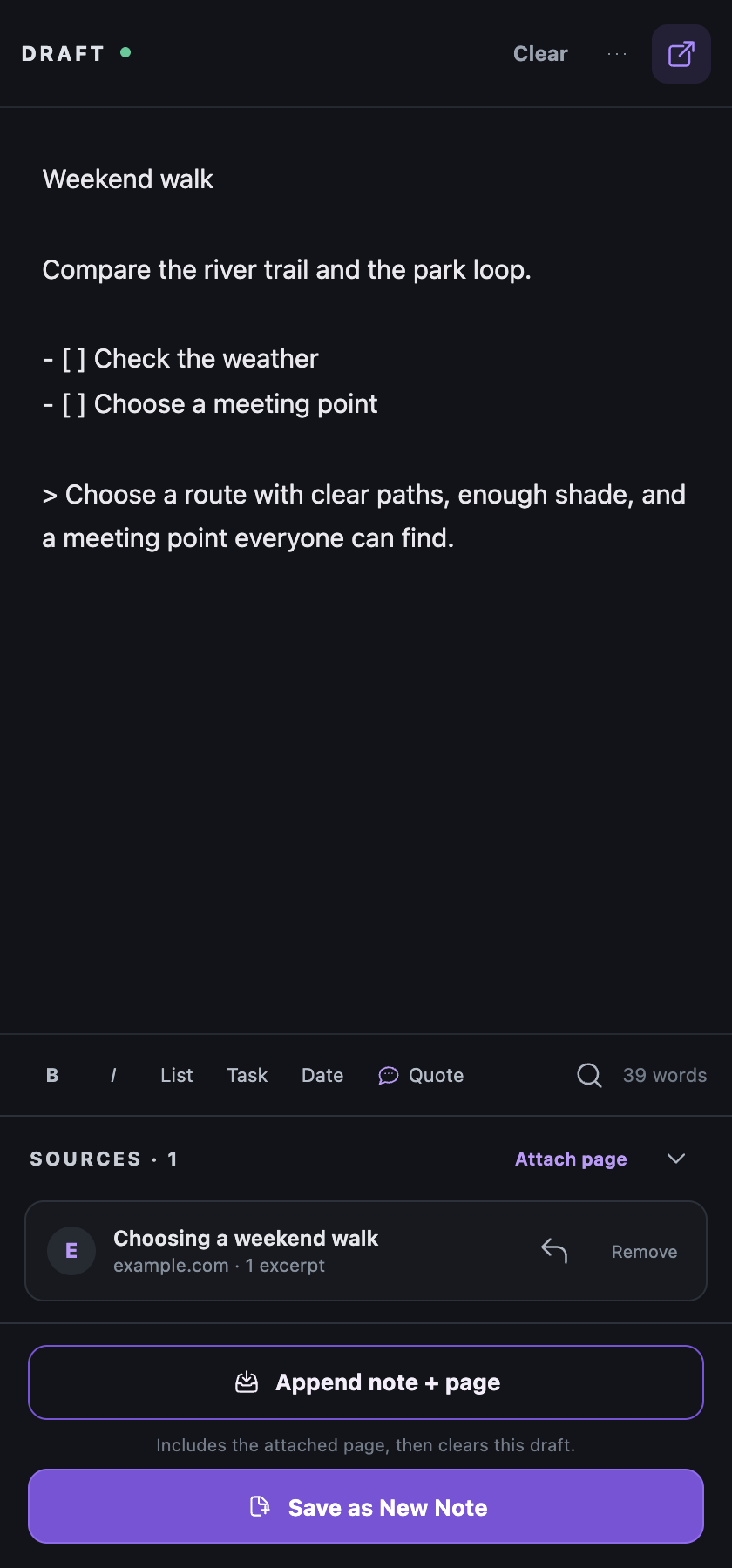
That is what Draft is for. It stays open beside the page and saves automatically while the thought is still moving.
If you are writing something quickly from the browser, the first question should not be: “What perfect note does this belong in?”
It should be: “What do I need to keep while the page is still in front of me?”
Keep writing until the useful part is clear. Attach the page, or capture selected text with its source, only when that context belongs with the draft.
Write first. Choose the destination later. That is not disorder. It is how you keep the working path usable.
If you want to see that loop inside Root, the Draft for Chrome guide shows how working text moves from the current page into a new note, Inbox, Open Tasks, Snippets, or Context Handoff.
Keep the destination choice clear on purpose
One of the quietest ways capture tools get bloated is by asking you to navigate a filing system before the thought is ready.
Draft keeps the choice smaller. When the material is ready, there are two destinations:
- Save as New Note keeps the draft open so you can continue writing
- Append to Inbox sends the draft and its sources to Inbox, then clears the writing surface
The buttons describe the consequence before you choose. There is no hidden filing step and no long destination menu.
That is a good constraint. It lets the draft stay about the work in front of you while the full workspace handles organization later.
Use pinned notes for recurring work, not everything
Pinning is useful because it turns a note into a real work surface without making the whole workspace feel fixed.
Good things to pin are usually:
- a current client or project note
- a launch checklist
- a recurring planning page
- a place where research fragments need to land for a while
If those fragments are still becoming a report, brief, or decision, the research staging workflow shows how to keep links, quotes, questions, and source context together before the final document exists.
Less good things to pin are random one-off notes that only matter for an hour.
If too many notes become “special,” the special list stops helping.
Keep Draft close and open the workspace on demand
The side panel and the full workspace now have different jobs.
Draft is the close-at-hand surface. Select the Root icon when you want to write beside the web, then close the panel when you are done.
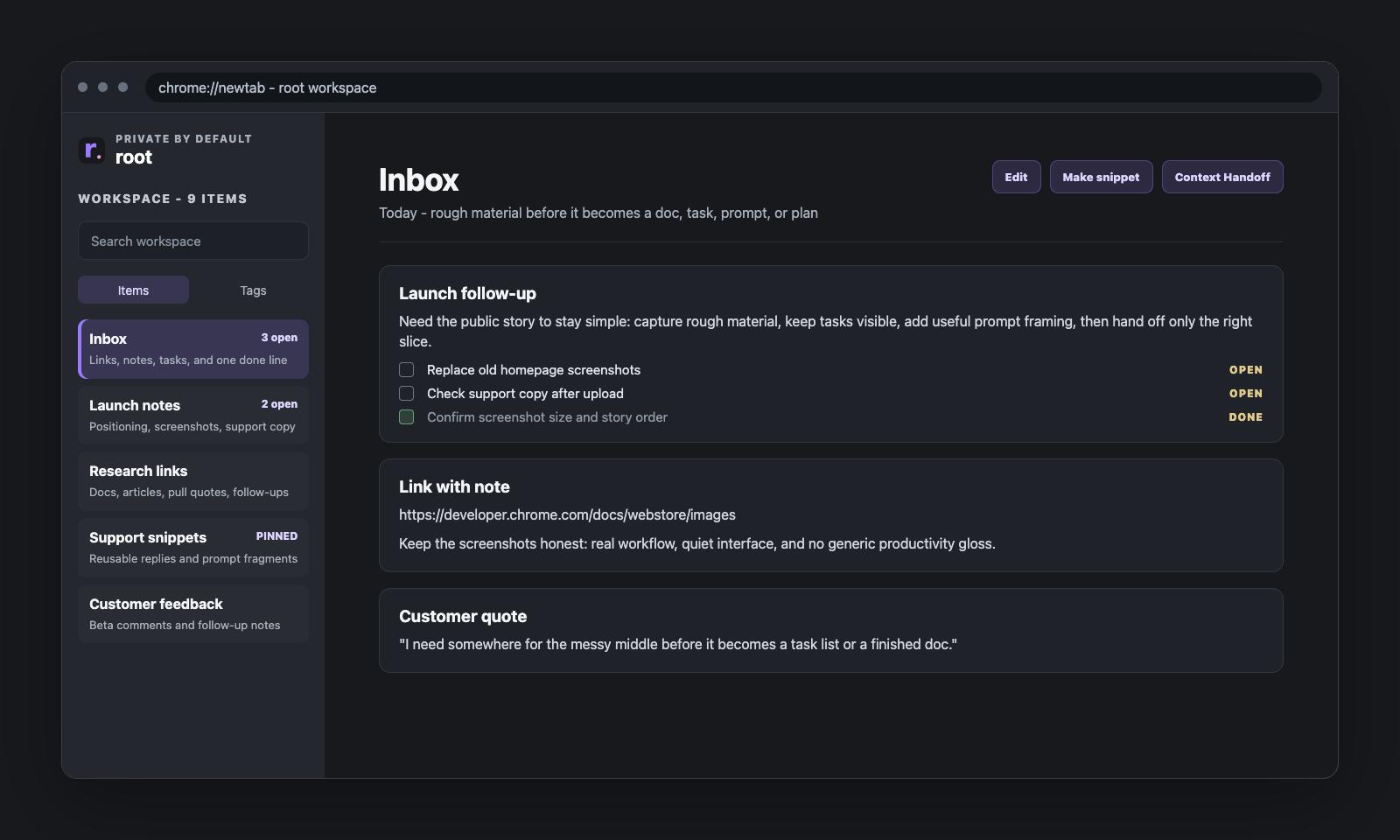
The full workspace is the deeper surface for reviewing the library, editing notes, organizing work, and preparing handoffs.
Root leaves your usual new-tab page alone.
Use Open workspace only when you want the complete surface.
That gives you a cleaner split:
- Draft stays beside the active page
- the full workspace opens on purpose
- your usual new-tab flow stays untouched
Keep one stable workspace tab when you want a focused setup
One of the easiest ways a browser workspace gets confusing is when it opens in three different tabs and you stop trusting which one is current.
That is why the quieter setup works best when Root behaves like one stable home.
In practice, that means:
- open the full workspace from Draft
- keep that tab pinned if it helps
- let Root focus and reuse it instead of multiplying tabs
That sounds small, but it changes the feel a lot. The workspace stops acting like a browser takeover and starts acting like a reliable desk you can return to.
Use Open Tasks as your reality check
Browser capture gets much better when unfinished lines do not disappear into old notes.
That is where Open Tasks helps. Instead of forcing every task into a separate system, unfinished checklist lines can stay in normal notes and still roll up into one place.
That keeps the workflow lighter:
- capture quickly
- leave the task in the note where it belongs
- still see open work in one view later
What this workflow is trying to protect
Underneath all the little choices, the real goal is simple:
keep capture easy without turning the browser into chaos.
That usually means resisting a few temptations:
- too many destinations
- too many tabs
- too many decisions at capture time
- too much pressure to organize everything immediately
The best browser workflow is not the one with the most options. It is the one you will still happily use on a busy day.
Closing
If capture has been feeling messy, a more focused setup is usually not far away.
Start with one Draft. Keep sources only when they add meaning. Choose a new note or Inbox when the material is ready. Keep one stable workspace tab for the deeper work and let the rest of the browser breathe.
Small constraints are often what make a capture system feel good again.