Support
Get unstuck in Root
Root is intentionally small, so support should feel straightforward too. Start with setup, recovery, or troubleshooting, then reach out if something still feels off.
Jump straight to install, backup, recovery, or troubleshooting.
No direct match yet. Try simpler terms like install, export, backup, or extension.
Support scope
What Root support covers
Root is local-first and small by design. Support focuses on the Root product and the connected-workspace issues Root can reasonably investigate.
-
Root Workspace
Support covers installation, product behavior, import/export, backup guidance, and reproducible Root Workspace problems across supported Chrome, Safari, iPhone, and Android releases. Root cannot guarantee recovery when every local copy and backup is missing.
-
Root Connect
Support covers Root Connect purchase or restore problems, connection setup, Root-generated diagnostics, and synchronization problems between supported Root surfaces. Root cannot recover a Google account or guarantee Google Drive availability.
-
Root for Codex
Root for Codex is a free permanent beta. Its documentation and reproducible issue reports are best-effort only, with no guaranteed compatibility, response time, service level, or data recovery. Keep backups of your local
Codex Draftsor supported legacyCodex notesfolder.
Install and setup
Install and setup
Install Root on Chrome or iPhone. Safari for Mac is in development and is not publicly available yet. Each app works locally without a Root account; Root Connect is optional when you want to sync supported devices with your Google Drive. Android testers can request Closed Alpha access through Contact.


-
How do I install Root and know it worked?
Both versions begin as private local workspaces. Choose iPhone, Chrome, or install both:
- On iPhone: download Root from the App Store, open it, then choose Start a new workspace. Capture one small note and confirm it appears in Inbox.
- In Chrome: install Root from the Chrome Web Store, choose Add to Chrome, then select the Root icon. If Research Draft opens in Chrome's side panel, the core install worked.
- Pin the Chrome extension if you want Research Draft easy to reach from the toolbar.
Set up Root Connect only if you want to sync devices with your Google Drive.
-
Already installed Root?
Use Getting Started for the short first-run loop: pin Root, open Research Draft, save or append one useful thought, open the full workspace, and keep one manual export outside the browser.
-
How should I connect iPhone and Chrome?
Start on iPhone so Chrome lands on a workspace that is already ready: download Root from the App Store, unlock Root Connect, connect Google Drive, and use Sync now. Then install Root from the Chrome Web Store, set up Root Connect with the same Google account, use Sync now, and confirm one small test note appears on both devices. Root Connect is the optional way to sync devices with your Google Drive.
-
How will iPhone and Safari connect when Safari is available?
Safari is not publicly available yet. For an authorized test build, let the iPhone finish one Root Connect update first, then pause it. On the Mac, open the Root for Safari app, restore your Apple purchase if needed, connect the same Google account, and select the intended Root folder. Enable the Safari extension, open the full workspace, set up Root Connect, and complete one update before editing on both devices. If you are recovering or troubleshooting, keep only one device active at a time until both show the expected workspace.
-
How does Root open in Chrome?
Selecting the Root extension icon opens Research Draft in Chrome's side panel. The panel stays beside the page you are browsing. Use Open workspace when you want the full Root library and editor.
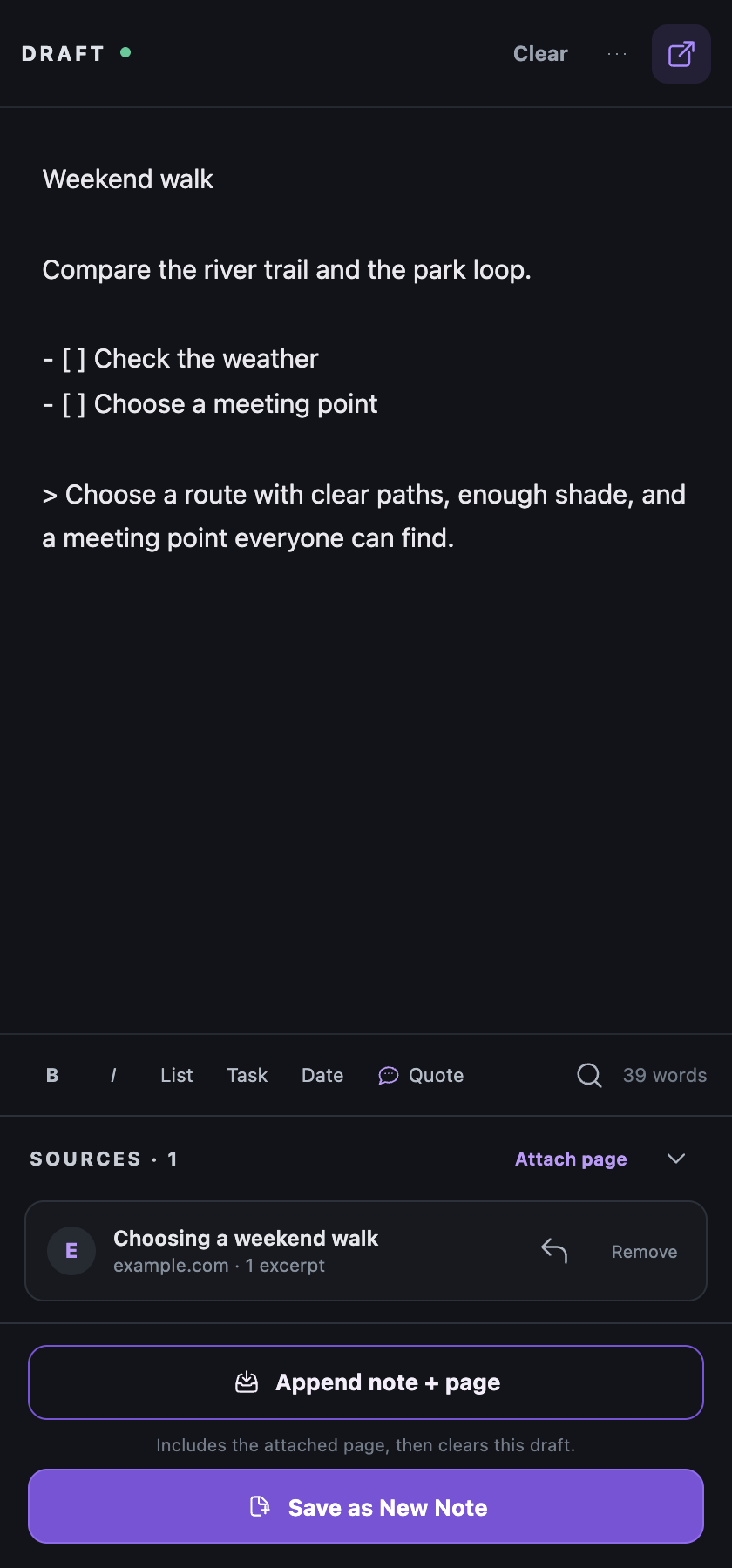
Draft keeps the captured quote and its page source together. The full workspace opens when you choose Open workspace. - Beside the web: use Research Draft for writing, quotes, findings, questions, and sources while you browse.
- Full workspace: use the open-workspace icon to review, edit, organize, search, and prepare handoffs.
- Closing the side panel does not close the full workspace tab.
-
How will Root open in Safari on Mac?
Root for Safari is still in development and is not available from the Mac App Store yet. The containing Mac app will guide you to enable the extension in Safari. Choosing Root in Safari's toolbar will open or focus one narrow Research Draft companion window; Open workspace will open or focus the complete Root workspace.
- Beside Safari: use the Research Draft sidecar for writing and deliberate page, link, or selected-text capture.
- Full workspace: use the internal sidebar to review, edit, organize, search, import, export, and prepare handoffs.
- Optional sync: connect Root Connect in the containing Mac app only if you want this Mac to use the Root workspace in your Google Drive.
-
How do I keep one stable full-workspace tab?
Use Open workspace from Research Draft, then pin or bookmark that tab if it helps. Root focuses and reuses the existing workspace tab when one is already open instead of creating duplicates.
-
Does Root replace my new-tab page?
No. The current public Chrome package leaves your usual new-tab page alone. Root opens Research Draft in Chrome's side panel and opens the full workspace in its own tab only when you choose Open workspace.
Backup and recovery
Backup and recovery
Root is local-first, so backup habits matter. The current public Chrome package surfaces that more clearly with a Last backup control and a small Workspace health view inside the app.
-
How do I back up or move my library?
Open Last backup in the top bar, then use Export library. That same menu also holds the import paths when you want to bring content back in. If you want to move content between machines or browser profiles, export first, then import on the other side.
Optional Root Connect can keep supported Root surfaces in sync through your own Google Drive, but it is not a complete backup or account-recovery service. Keep a normal export outside the browser even when Root Connect is active.
On Safari, the workspace is stored in the extension's native app container. Removing Root for Safari together with its local data or clearing Safari extension data can remove that local workspace, so export anything important before cleanup or reinstallation.
-
Where do I see backup status or Workspace health?
Use the Last backup control in the top bar. It shows whether you have never exported or how long it has been since the last full backup. The same menu opens Workspace health, which gives a quick local summary of items, snippets, open tasks, trash, and storage so you can sanity-check the workspace before a cleanup or move.
-
What do Archive, Trash, and Version do?
- Archive hides items without deleting them.
- Delete moves items into Trash first.
- Version helps recover recent local snapshots for an item.
-
Can I import or drag files into Root?
Yes. You can import by menu or drag one or more
.mdor.txtfiles straight onto the workspace. Drag-and-drop is best when you have a small set of loose scratch files and want to see them together in Root.- Drag in multiple files at once.
- Use the sidebar to move between them without opening separate text editor windows.
- Edit the text, pull out checklist lines in Open Tasks, save reusable bits as Snippets, or use Context Handoff when you need to share the exact slice.
-
What can wipe a local-first beta?
In the current public Chrome package, Root lives in browser storage. If you clear browser site data, reset Chrome, delete the browser profile, or do a full cleanup without exporting first, the local workspace may be deleted.
Safety first
Keep one full export outside the browser
Treat backup like a normal habit, not a panic button. The app now shows backup status inside Root, but the safest move is still to keep one full export in a place you already trust outside the browser.
- Export once a week or after important work.
- Export before a browser cleanup, profile move, or big reorganization.
- Keep at least one full export outside the browser so the workspace is not living in only one place.
Troubleshooting
Troubleshooting
The small fixes that solve most beta issues without a dramatic reset.
-
What should I try if the extension looks stale after an update?
In Chrome, reload Root from
chrome://extensions. In Safari, quit the Root companion windows, confirm Root for Safari is enabled under Safari → Settings → Extensions, then reopen Research Draft from the toolbar. If Safari shows more than one Root extension entry, do not clear extension data; contact support with your macOS, Safari, and Root versions. -
Why does Root for Safari open a separate Research Draft window?
Safari does not provide Chrome's built-in side-panel surface to extensions. Root for Safari therefore opens or focuses one narrow Research Draft companion window that you can place beside Safari. It does not continuously force the window to follow the browser. Use Open workspace for the complete library and internal sidebar.
-
Why is Attach page unavailable sometimes?
Browser settings, extension pages, local files, and some protected pages do not expose the same information as ordinary websites. On those pages Attach page may be unavailable in Chrome or Safari. Try it again on a normal public webpage.
-
Does Root have built-in voice dictation?
No. Use your operating system's built-in dictation wherever your cursor is in Root. On Mac, use the Dictation shortcut you set in Keyboard settings. On Windows, press Windows logo key + H.
-
Does Root work in Incognito?
Not as your main workspace. Chrome can require explicit permission for extensions in Incognito, and Incognito windows are temporary by design. Root is safer in a normal browser profile where the local workspace persists.
-
Why does a context bundle feel too big?
Use a smaller scope, turn metadata off, or try Links only when the references are the real payload. The handoff is usually better when you narrow it before you copy.
-
What should I avoid while testing?
- Avoid editing the same item in multiple Root tabs at once.
- Keep only one Root Connect writer active at a time while recovering or troubleshooting a shared library.
- Export before switching profiles or machines.
- Do not assume a browser cleanup will spare local extension data.
-
What should I send in a support email?
Tell us what happened, which Root surface and version you were using, and the last thing you clicked before the problem showed up. For a Root Connect problem, include the safe Root-generated sync log if available, but never send passwords, authorization codes, or Google account recovery information.
Still stuck?
Need help from a person?
Email support@rootworkspace.com and include the browser, what happened, and the last thing you clicked before the problem showed up.